 SummitGPX Help Centre
Why GPX Files Fail on Watches
A GPX file can look fine on a computer but still fail on a watch, phone app or navigation device. SummitGPX provides a Free GPX Health Check to help organisers validate GPX files, detect route issues, check elevation data and repair common GPX problems before race day.
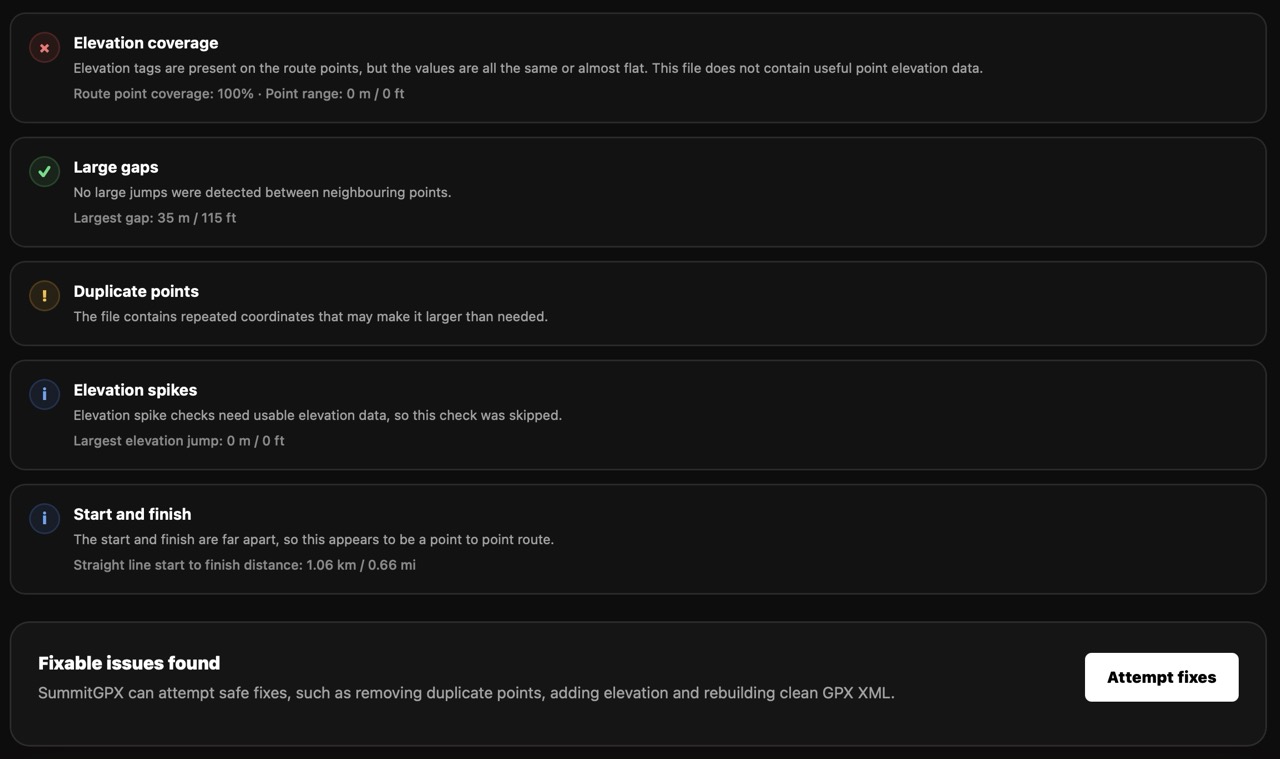
GPX Health Check
For the complete SummitGPX workflow, see Using GPX Health Check in SummitGPX. The actual customer-facing tool is the Free GPX Health Check on the SummitGPX website.
The GPX Health Check analyses a GPX file and gives a practical GPX Health Score. Use it before publishing a route, after receiving a revised GPX from a planner, or when runners report problems importing a file on Garmin, Coros, Suunto or other devices.
It checks for:
- Valid GPX structure and usable route data.
- Very short or very low-point routes.
- Large gaps between route points.
- Duplicate consecutive points.
- Missing or poor elevation coverage.
- Obvious elevation spikes.
- Whether the route appears to be a loop or point-to-point.
Repairing a GPX File
When repair is available, SummitGPX can create a cleaner GPX file. Repairs can remove duplicate points, generate missing elevation and smooth obvious elevation spikes.
If the repair needs terrain data for a new area, SummitGPX may need a short preparation period before the repaired GPX is ready.
Common Reasons GPX Files Fail
The GPX File Is Too Large
Large files with many thousands of points can be slow to import or may fail on older devices. A simplified file can often preserve the route shape while improving compatibility.
The GPX File Is Malformed
GPX files are XML. If tags are missing or broken, some devices will reject the file.
<trk>
  <name>Example Route</name>
The track is opened but never closed. A valid file needs closing tags.
<trk>
  <name>Example Route</name>
</trk>
The File Has Large Gaps
Large gaps between points can cause straight-line shortcuts, incorrect distances or navigation problems. This often happens when separate route sections are joined poorly.
The File Has Poor Elevation
Missing elevation, all-zero elevation and sudden spikes can create misleading ascent totals. The GPX Health Check can flag these issues, and repair may be able to generate or smooth elevation.
The File Uses Routes Instead of Tracks
Some devices are better with GPX tracks than GPX routes. For fixed race courses, track-based GPX files are usually safer.
The File Contains Unexpected Data
Some apps export GPX files with custom extensions such as heart rate, cadence, temperature, power or app-specific metadata. Most of this is harmless, but some devices handle unusual extensions poorly.
What Organisers Can Do
- Run the GPX Health Check before publishing a route.
- Review warnings and use repair where appropriate.
- Test downloads on common watches and apps used by your runners.
- Use hosted route pages and QR codes so runners can always find the latest file.
- Use split GPX downloads for long routes where section files are easier to manage.