 SummitGPX Help Centre
Team Members
Team members are Pro features for organisations where more than one person manages events, routes and runner communications. Each person should have their own login rather than sharing account credentials.
Roles
SummitGPX uses account roles to control access:
- Owner: the main account holder.
- Admin: can manage account settings, events, routes, branding and team invitations.
- Member: can work with events and routes, but cannot manage billing, branding or team invitations.
Inviting a Team Member
- Open Account Management.
- Go to Team Members.
- Enter the person's email address.
- Choose Admin or Member.
- Send the invitation.
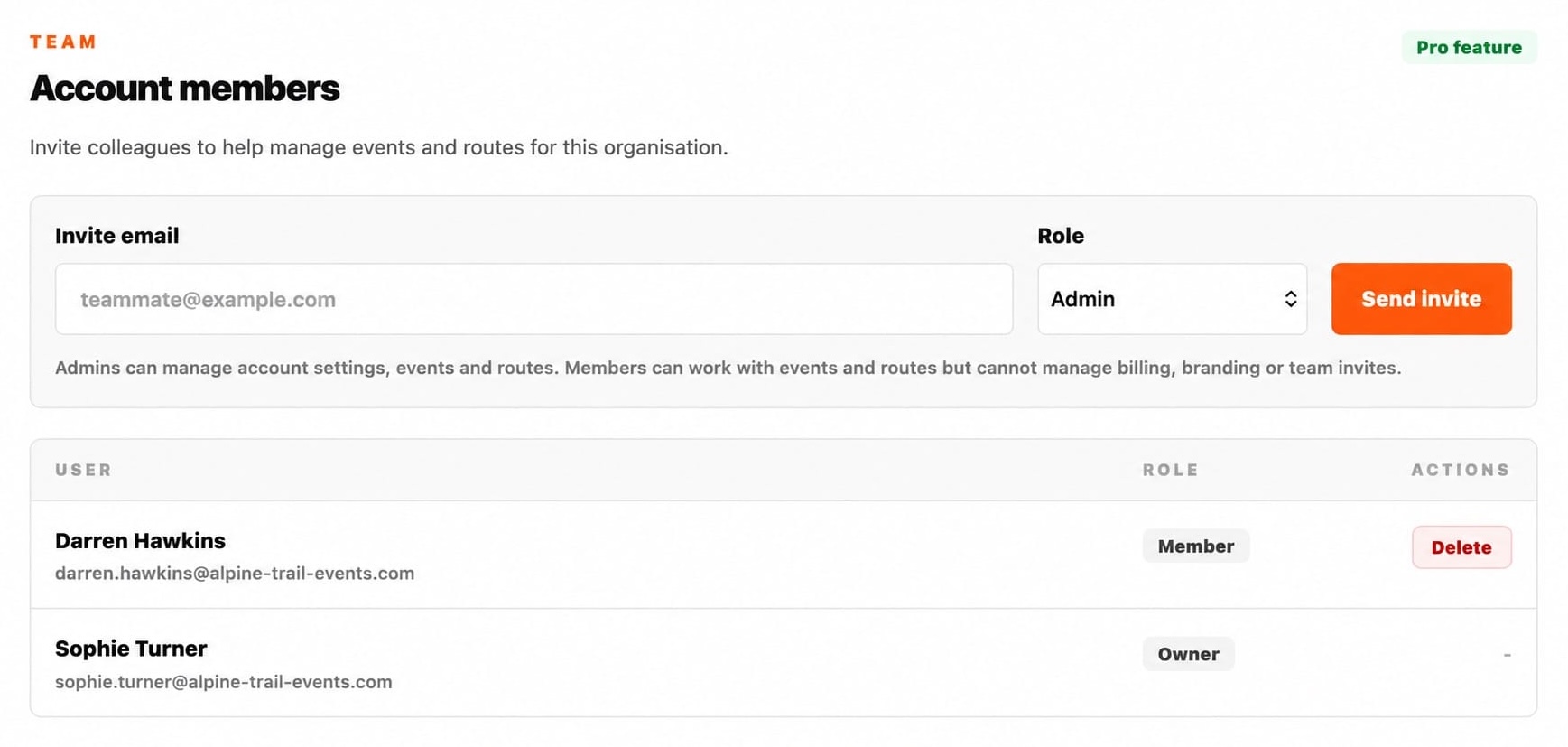
Invitations expire after 7 days. If someone misses the expiry window, send a new invitation.
Accepting an Invitation
The invited person follows the invitation link, creates or signs into their SummitGPX user account and joins the organisation.
Managing Team Members
Owners and admins can view team members, invite new users and remove users who no longer need access. Removing a team member does not delete events, routes or account data.
What Team Members Can Help With
- Creating and updating events.
- Importing route files and replacing route GPX files.
- Reviewing maps, elevation profiles and downloads.
- Managing checkpoints and split points when the account has those features.
- Preparing route links, QR codes and embeds for runner communications.
- Managing route recipient lists, preparing update emails and reviewing delivery jobs.
Best Practice
- Invite people using their own email address.
- Use Member access for people who only need to work on routes and events.
- Use Admin access only for people who need account-level control.
- Remove users promptly when they leave the organisation or event team.
- Review access before race week when route changes are most likely.
Frequently Asked Questions
Can multiple team members edit routes?
Yes. Team members can collaborate on route management within the same organisation.
Do team members need their own SummitGPX accounts?
Yes. Each team member should use their own login rather than sharing credentials.
Who can invite team members?
Owners and admins can invite team members on Pro accounts.
What happens if a team member leaves?
Their access can be removed without affecting the organisation's events, routes or route history.