 SummitGPX Help Centre
Managing Your Subscription
Whether you need to upgrade, downgrade or review your current plan, subscription management is designed to be simple and flexible as your organisation’s requirements change.
Viewing Your Subscription
To view your current subscription:
- Open Account Management.
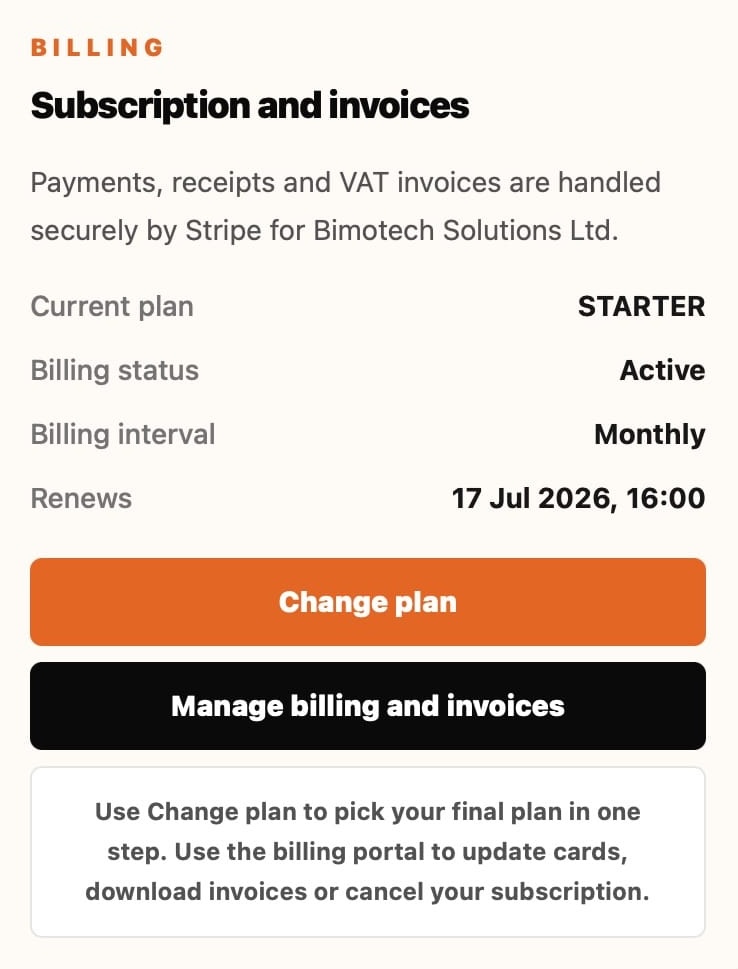
- Navigate to Subscription & Billing.
- Review your current plan and subscription details.
From this area you can see:
- Current plan
- Billing cycle
- Subscription status
- Account limits
- Feature access for route updates, checkpoints, embeds, analytics and team members
Upgrading Your Subscription
As your organisation grows, you may need access to additional features or higher limits.
To upgrade:
- Open Subscription & Billing.
- Select Change Plan.
- Choose your new subscription.
- Complete the checkout process if required.
Upgrades are applied immediately, allowing you to continue working without interruption.
Downgrading Your Subscription
If your requirements change, you can move to a lower plan.
Before downgrading, review your current usage to ensure it falls within the limits of the selected plan.
If your account exceeds the limits of the new plan, some actions may be restricted until usage is reduced or the account is upgraded again.
Managing Team Access
Team members are available on Pro and Enterprise accounts. Owners and admins can invite people as Admin or Member users from Account Management.
Before inviting additional users, check:
- Whether your plan includes team members
- Who genuinely needs account access
- Whether each person should be an Admin or Member
If team controls are not visible, review Plans and Limits.
Reviewing Plan Limits
Depending on your subscription, limits may apply to:
- Events
- Routes
- Private routes
- Route updates
- Pro features such as version history, checkpoints, embeds, playback, analytics, white label branding and team members
Current usage and available limits can be viewed within your account.
Subscription Changes
When changing plans:
- Existing routes remain unchanged
- Public route pages and QR codes continue to work for public routes
- Route data is retained
- Pro-only tools may stop being available if the new plan does not include them
Subscription changes do not delete your route data, but they can change which actions and sharing tools are available.
Cancelling a Subscription
If you no longer require a paid subscription, you can cancel at any time.
To cancel:
- Open Subscription & Billing.
- Select Manage Billing.
- Follow the cancellation process.
After cancellation:
- Future payments are stopped
- Access continues until the end of the current billing period
- Existing account data is retained
Reactivating a Subscription
If you return to SummitGPX after cancelling, you can reactivate your subscription at any time.
Your account and existing route data remain available, making it easy to continue where you left off.
Best Practice
To get the most from your subscription:
- Review usage regularly
- Keep team member access up to date
- Upgrade before reaching plan limits
- Review Pro-only embeds, checkpoint downloads and version history before downgrading
- Ensure billing details remain current
This helps avoid interruptions and ensures your organisation has access to the features it needs.
Frequently Asked Questions
Can I change plans at any time?
Yes. Plans can be upgraded or downgraded whenever your requirements change.
Will changing plans affect my routes?
Changing plans does not delete route data. Some Pro-only features, such as embeds, checkpoints, route playback, analytics and version history controls, may no longer be available on lower plans.
What happens if I reach a plan limit?
You may need to remove unused resources or upgrade your subscription to continue adding new content.
Can I cancel whenever I want?
Yes. Subscriptions can be cancelled at any time through the billing portal.
What happens to my data if I cancel?
Your account data is retained, although access and available features may change depending on your subscription status.