 SummitGPX Help Centre
Route management
Route versions
Inspect and restore earlier course versions while keeping the public link.
Version History helps you recover a previous course after a planning change. Access to history and restore controls is normally included with Pro.
What creates a version?
Replacing a GPX, saving a route edit, reversing the course or restoring a previous version creates a new course version. The history records earlier route geometry, files, statistics and update notes.
Review history
Open the route and expand Version History. Review version numbers, dates, filenames and notes. Where geometry is available for comparison, Zoom to change moves the map to the changed area. Keep your own source-file copies if you need offline archives; the current history panel shows filenames and restore controls.
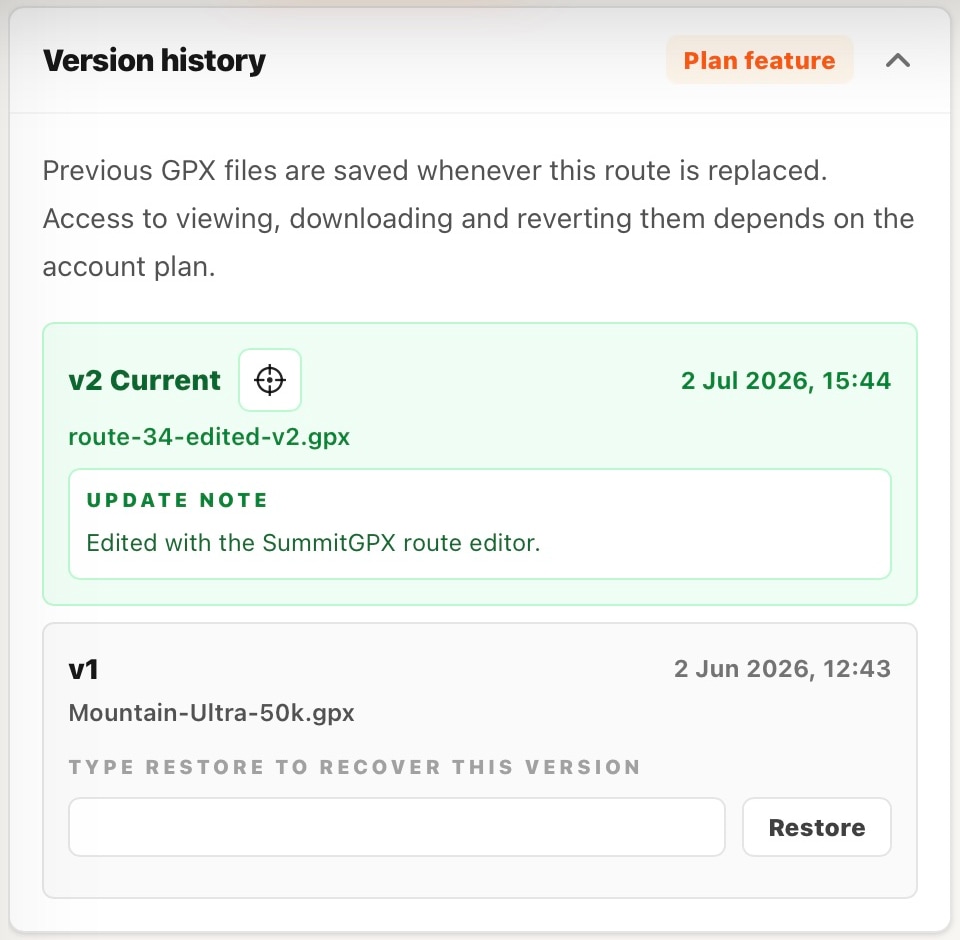
Restore an earlier course
- Identify the version you want and read its notes.
- Type RESTORE in its confirmation field and choose Restore.
- Wait for processing, then check the new current route, checkpoints, profile and split sections.
- Open the public route and download the current GPX before announcing the change.
Restore creates a new current version and keeps the history. It is not an undo for every checkpoint detail or for a deleted route.
Show runners the version
Where available, enable public version information so route pages, embeds and download filenames help runners identify the current file. Existing links continue to work, but a file already on a watch still needs replacing.