 SummitGPX Help Center
Route management
Updating routes
Replace a GPX, edit a section, reverse direction or restore a version.
Replace route files and send route-update emails with Starter or Pro. Route editing, reversal and version history require Pro.
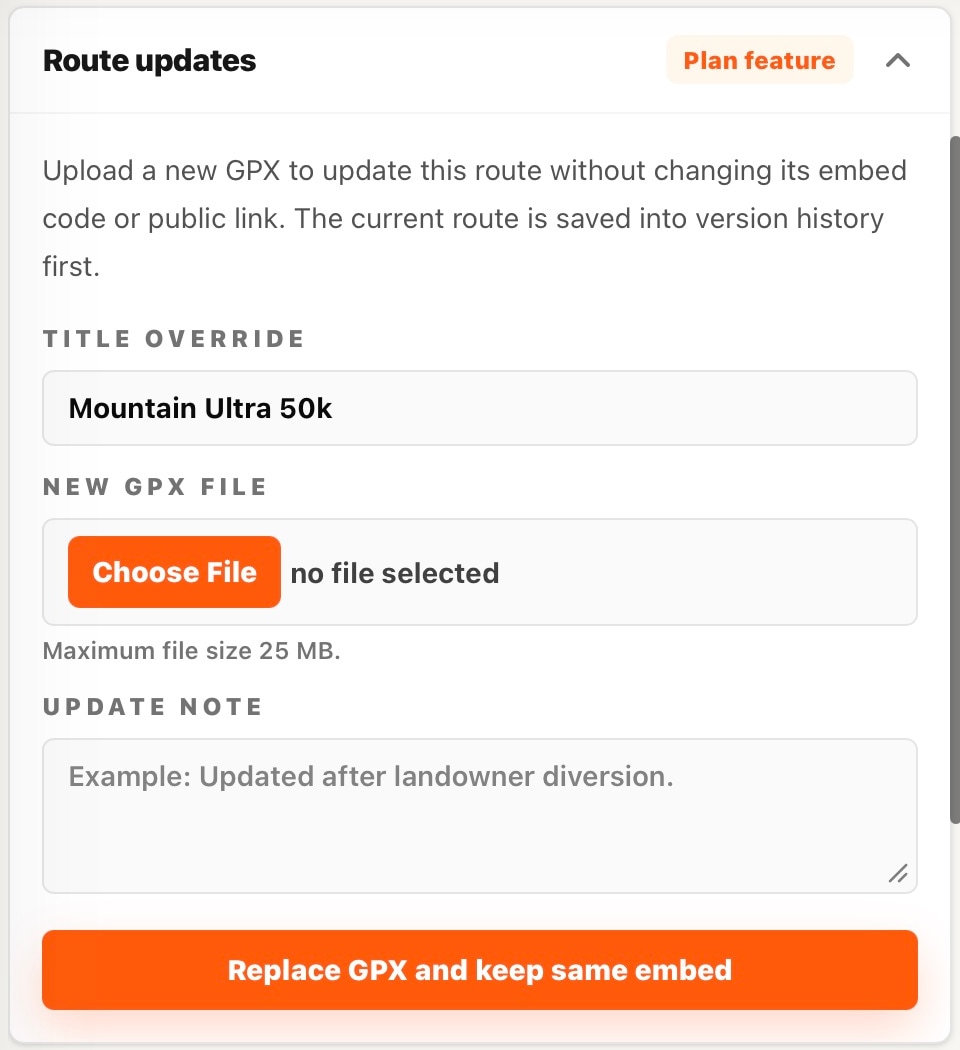
Update the existing route to keep its public link, QR code and embed working. Wait for processing and review the result before asking runners to download it again.
Replace the full GPX
- Open the organizer route and expand Route Updates.
- Choose the revised GPX file in the replacement form. Replacement accepts GPX; KML and FIT are for new imports.
- Add a clear update note, such as “Woodland diversion between C2 and C3”.
- Submit the replacement and wait for completion.
- Check the map, profile, checkpoint sequence, split points and current public downloads.
Full replacement requires route-update access, normally Starter or Pro. The former course is stored in history; viewing and restoring that history requires the corresponding plan feature.
Checkpoints after replacement
Existing checkpoint details are retained. SummitGPX remaps checkpoints onto the revised course and stops replacement if a checkpoint cannot be matched safely. If a message names checkpoints to review, inspect those locations and the replacement file before retrying. A sparse file or changed loop order may need particular attention. Always review the result; automatic placement cannot confirm that an aid station is still correct on the ground.
Edit a section on the map
- Choose Edit on the management map.
- Select the start of the section and an end point later along the route.
- Draw the replacement between them. With Snap to path enabled, place waypoints for the new section; otherwise the editor uses straight lines between clicks.
- Double-click to finish drawing. Review the new line, use Undo if needed, then Save. Use Cancel to abandon the edit.
The editor requires its plan feature. Snap to path also depends on routing-service availability. If routing fails, adjust the waypoints or draw manually, then inspect every segment.
Reverse direction
Expand Reverse route, choose Reverse route and read the confirmation. This swaps the start and finish, reverses the course order and updates direction-dependent figures. Checkpoint information is retained and its distance/order is recalculated. Review repeated visits and split points. The current published plan offering includes reversal with Pro. If the control is unavailable, check your account’s feature access.
Split points and version restore
Split points create download sections; they do not edit the master route. Review them after every geometry change. To recover an older course, use Version History.
Tell runners what changed
Replacing, reversing, restoring or editing a route does not automatically send a route update email. Prepare, test and send the update separately. Runners must download the revised file and transfer it to their watch again.