 SummitGPX Help Center
Route features
How to send a race route to your Garmin watch
Send the organizer’s published course to Garmin Connect, then sync it to a compatible device. You do not need a SummitGPX account.
Before you begin
You need a Garmin account and a device that supports courses from Garmin Connect. Device support varies: check Garmin’s compatibility information and your device manual. Send to Watch is available on routes whose organizer has the feature enabled.
1. Open the official route
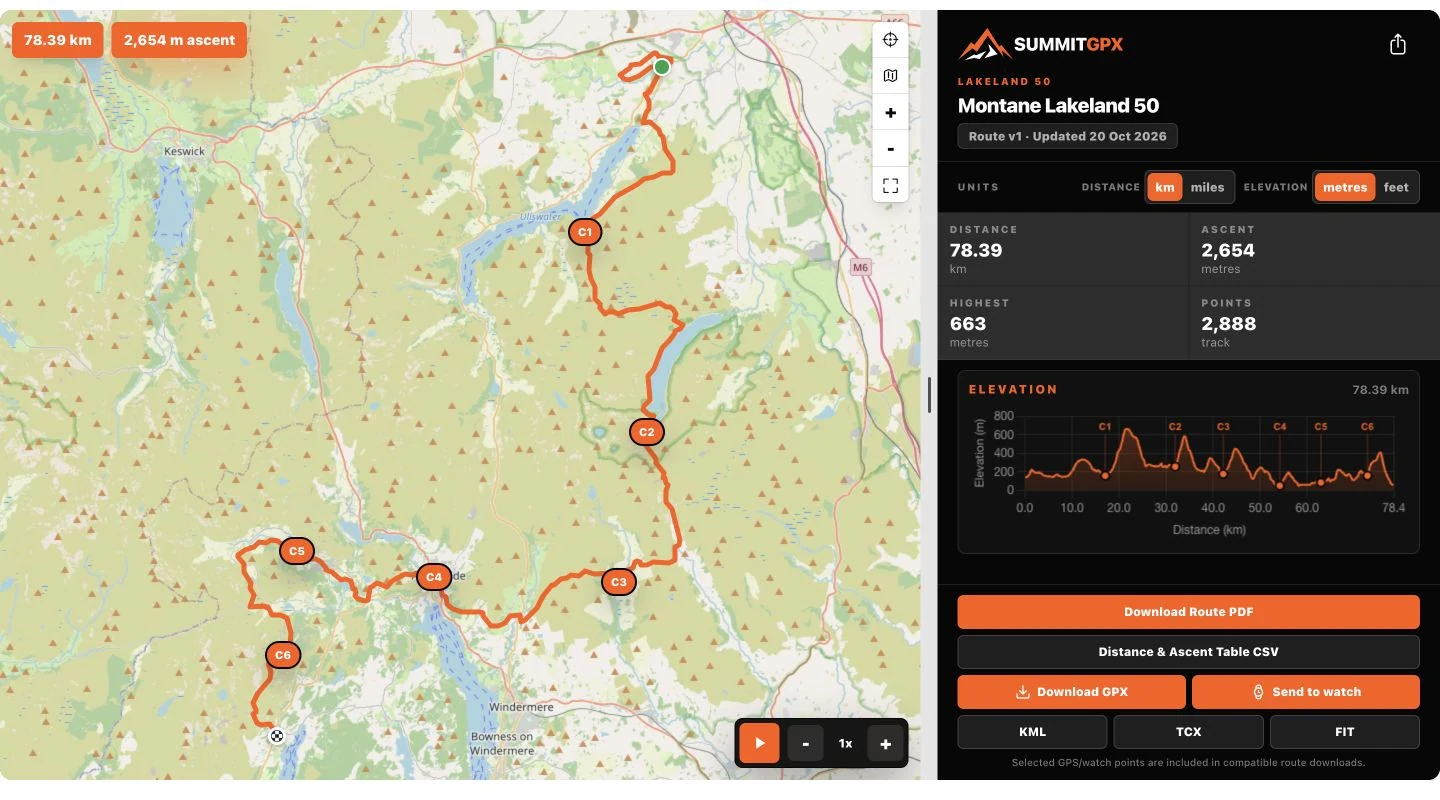
Use the organizer’s published link or QR code. Check the route name, distance and latest update. Private or unavailable routes cannot be transferred through a public link.
2. Choose Send to watch
Find Send to watch beside the route downloads. Select Garmin Connect and Continue with Garmin. The connection page opens separately. Garmin is the currently supported provider.
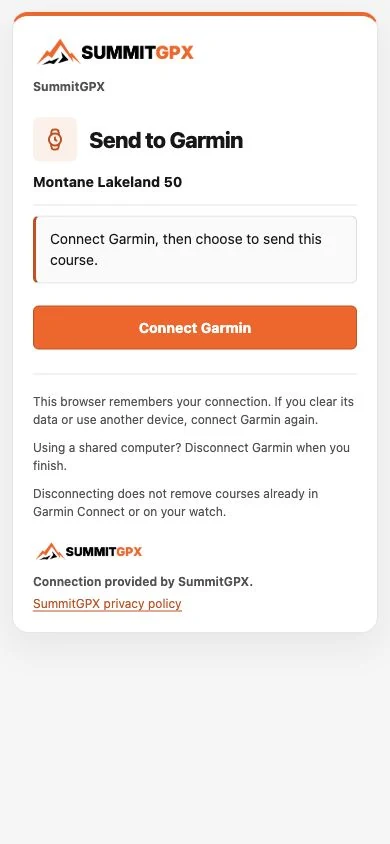
3. Connect and authorise Garmin
Choose Connect Garmin. Sign in on Garmin’s own authorisation page and review the requested access before approving it. Return to SummitGPX when Garmin is connected. Your Garmin password is entered with Garmin, not SummitGPX.
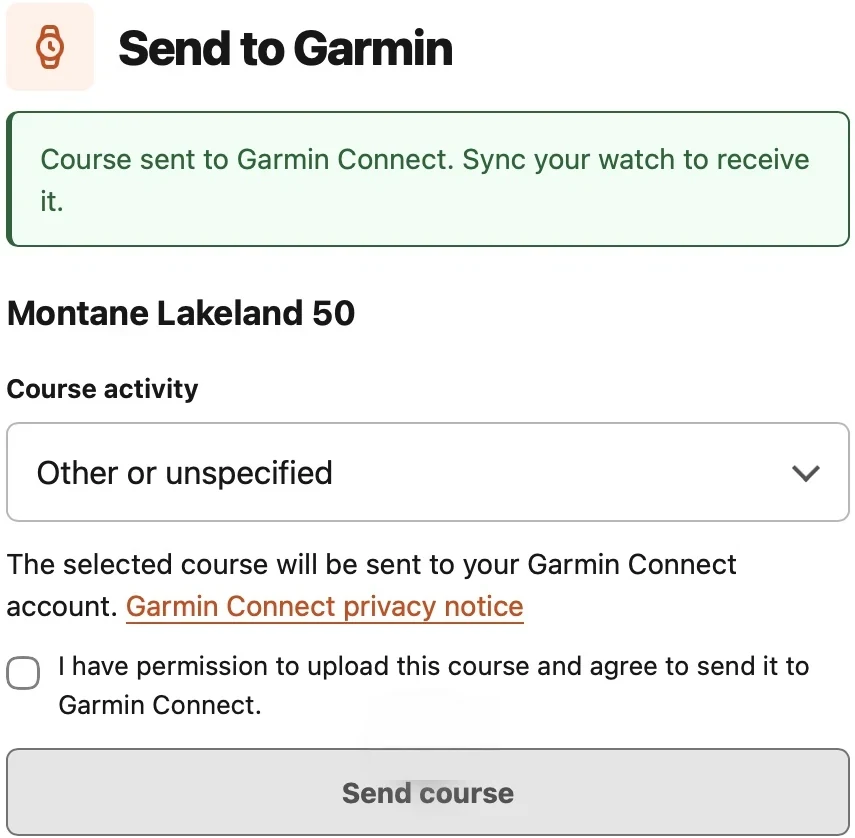
4. Review and send the course
Check the course name and choose the appropriate Course activity. Tick the permission checkbox only if you have permission to upload the course, then select Send course. Wait for the result before trying again.
5. Sync your compatible device
The success message confirms delivery to Garmin Connect, not arrival on the watch. In Garmin Connect, open Training & Planning, then Courses, select the course and use Send to Device. Choose your compatible device and sync it with Garmin Connect or Garmin Express. Labels may vary by app version.
6. Find the course on your watch
After syncing, open the course or navigation menu for your activity. The exact menu depends on your device; follow its owner’s manual. Check the route before starting and carry suitable navigation for the event.
Troubleshooting
If sending fails, check your internet connection and the route’s availability, then reconnect Garmin if requested. If the outcome is unclear, check Garmin Connect before retrying to avoid duplicate courses. Contact SummitGPX support with the route link and error message, never your password.
No Send to watch button? The organizer may not have the feature enabled, or the route may be unavailable. Ask the organizer for the current published link.
Connected to the wrong Garmin account? Use Disconnect Garmin, then reconnect with the correct account. Clearing browser data or using another browser requires a new connection.
Route updated? Reopen the official page and send the latest course again. Previously downloaded or transferred courses do not update automatically.
On a shared computer, disconnect Garmin when finished. Disconnecting stops future use of that browser connection; it does not remove courses already in Garmin Connect or on your watch.
Garmin is a trademark of Garmin Ltd. or its subsidiaries. No Garmin partnership or endorsement is implied.